Quick summary
Updating ELRS transmitter modules means flashing the correct ExpressLRS firmware build onto the module, matching the module’s hardware target, the selected RF band, and the packet-rate or regulatory settings. You normally update the module over Wi-Fi or USB using the ExpressLRS Configurator or web flasher, then rebind. Before any update, record your current target and settings, use a stable data connection, and verify which firmware major version your receivers use. Never flash a new major version across an entire team fleet without a bench test. If you are unsure which build matches your hardware, confirm the exact model and target with your supplier in writing first.
Key Takeaways
- Match the module’s hardware target exactly; a wrong target can require a recovery flash or make the module unbootable.
- Record your current firmware major version, target, RF band and packet settings before changing anything.
- Update one transmitter and one receiver first, bind them, and range-check before touching the rest of the fleet.
- Receiver and transmitter firmware must share a compatible major version; do not mix versions across a team.
- If commercial details such as pre-flashed firmware version or update support matter, ask for them in writing rather than assuming.
What does updating an ELRS TX module actually change?
Short answer: it replaces the firmware running on the transmitter module, which controls how the module speaks to receivers, what RF modes it can use, and what configuration options appear.
ELRS (ExpressLRS) is an open-source radio control link. The transmitter (TX) module is the part that sends control data; the receiver (RX) receives it. Firmware versions are released as major versions, and a major-version change can alter binding behaviour and configuration. That is why version matching matters more than simply having “the latest” build.
An update can add or change available packet rates, telemetry behaviour, and how the module is configured. It does not automatically improve link quality if the surrounding setup — antennas, band choice, power limits, receiver placement — is poor. Treat firmware as one part of a system, not a standalone performance fix.
Firmware version vs. hardware target
Two different things are often confused. The firmware version is the release number. The hardware target identifies the specific board inside the module, such as a particular chipset and layout. Flashing version 3 firmware onto a module is meaningless unless the target matches the physical board.
Why major versions must not be mixed casually
TX and RX firmware need to be compatible. If your receivers run one major version and the transmitter runs another, binding can fail or behave unpredictably. In a club with many aircraft, this is the single most common source of “it stopped working after an update” reports. Confirm the major version of both sides before flashing.
Before you flash: record your current setup
Short answer: write down what you have now, so you can return to it or diagnose a failed update.
Open your current configuration and note the firmware version, the hardware target, the RF band (for example 2.4 GHz or 900 MHz-class), the packet rate, telemetry ratio, and any binding phrase or model-match setting. Photograph the config screens. This record is your rollback reference.
- Firmware version and target
- RF band and packet rate
- Binding phrase or bind method
- Any region or regulatory setting your club is required to follow
- Which receivers in the fleet are on which version
If your club standardises on a version, note that too. Consistency across a fleet is usually more valuable than being first on a new release.
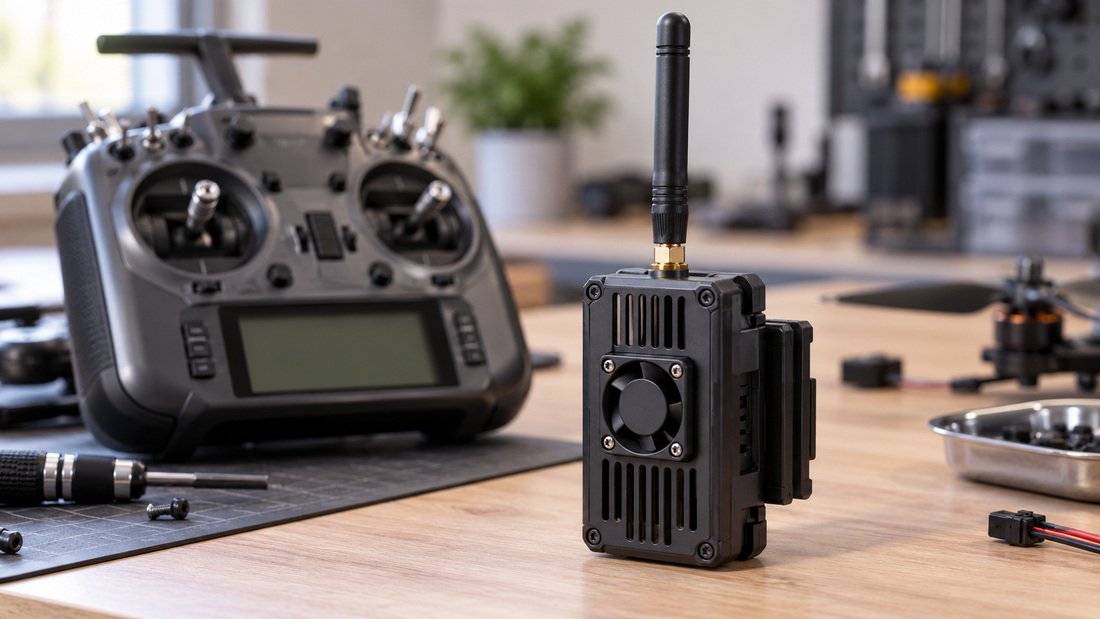
Step-by-step: updating ELRS transmitter modules
Short answer: power the module in its update mode, connect via Wi-Fi or USB, select the correct target and options, flash, then verify.
Step 1 — Enter update mode
Most external modules enter a Wi-Fi update mode when you power them in a specific way, often by holding a button while powering up or by triggering it from the radio’s menu. Internal modules may need the radio to run a passthrough or a dedicated flashing mode. The exact method depends on your module and radio, so check your module’s own documentation rather than assuming.
Step 2 — Connect
Over Wi-Fi, the module creates an access point you join from a phone, tablet or laptop. Over USB, you connect the module or radio to a computer. Use a data-capable cable — a charge-only cable is a common and frustrating failure point.
Step 3 — Choose target and options
In the ExpressLRS Configurator or web flasher, select your firmware version, then the target that matches your module’s hardware, then the build options such as RF band and any regulatory or feature settings available. If the target list is ambiguous, stop and confirm with your supplier.
Step 4 — Flash and wait
Start the flash and leave the module and computer undisturbed. Do not unplug or power down mid-flash. If the process fails partway, the module may need a recovery method such as a wired flash.
Step 5 — Verify and configure
After flashing, confirm the new version shows in your radio or configurator, re-enter your settings, and set the binding phrase if you use one. Then bind to one receiver and check control response at close range before flying anywhere.
Step 6 — Range-check before fleet rollout
Do a range check in the way your club normally does it. If you use telemetry or link-quality indicators, watch those. Only after a single TX/RX pair behaves correctly should you update the rest.
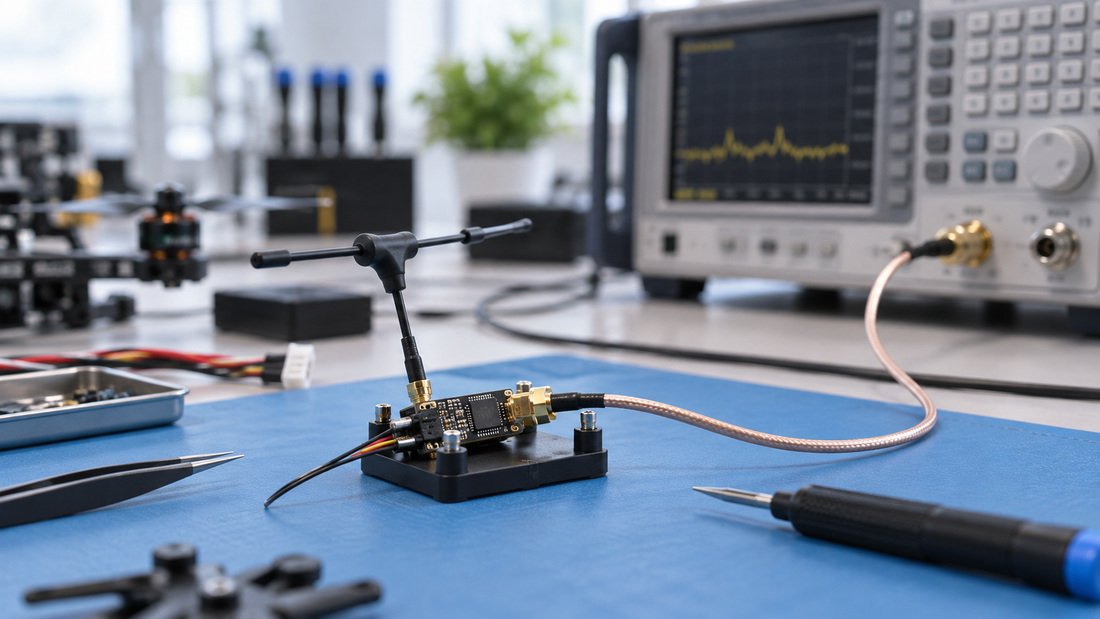
Wi-Fi flashing vs. wired flashing: trade-offs
Short answer: Wi-Fi is convenient but can drop; wired flashing is more reliable but needs a cable and driver setup.
| Method | Typical use | Advantages | Limitations |
|---|---|---|---|
| Wi-Fi update mode | Field or classroom updates, one module at a time | No cable or driver needed; phone-friendly | Connection can drop; slower on some devices; not ideal for many modules |
| USB / wired flash | Bench updates, recovery from a failed flash | More stable; often the only recovery route | Needs correct cable and drivers; more setup |
| Radio passthrough | Internal modules or when the module has no direct port | Uses the radio’s own connection | Depends on radio firmware support; extra steps |
For a club updating many modules, some organisers prefer to bench-flash a batch wired for reliability, then keep Wi-Fi for single corrections. Whichever you choose, standardise so volunteers follow one process.
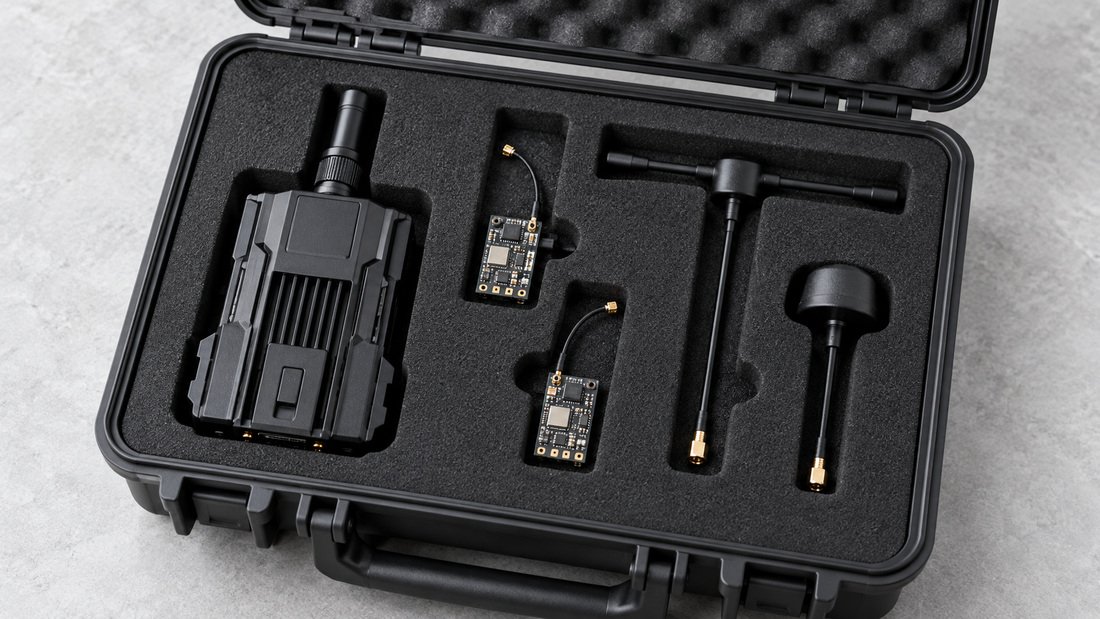
Common mistakes clubs make
- Wrong target. Flashing a build for a different board; this is the most damaging error.
- Mixed major versions. Updating transmitters but not receivers, or the reverse.
- Skipping the record step. Then being unable to restore known-good settings.
- Charge-only USB cables. The computer never sees the device.
- Interrupting a flash. Power loss or unplugging mid-flash can leave the module needing recovery.
- Fleet-wide update at an event. Updating everything the night before a competition, with no bench test.
- Assuming an update fixes range. Link problems often come from antennas, placement or interference instead.
If range or link quality is the real problem, firmware is rarely the first thing to examine. Antenna choice and installation usually matter more — see the guidance on RF antennas.
How to recover a module that will not respond
Short answer: try a wired flash, and if that fails, look for the module’s dedicated boot or recovery method before assuming it is dead.
Many modules can be recovered by forcing them into a bootloader mode, often by holding a button during power-up while connected by USB. Some require a specific flashing procedure documented by the module maker. Because recovery steps differ by hardware, follow the maker’s instructions rather than a generic guide.
If the module still is not detected, try a different data cable and a different USB port, and confirm any required drivers are installed. If you cannot recover it, contact the supplier with the exact model and the step where it failed. Ask them what recovery support they provide, in writing.
Checking ELRS receiver compatibility after an update
Short answer: confirm your receivers can run a matching version, and check binding behaviour before using them with students.
Not every receiver supports every firmware version or feature. After updating transmitters, verify that each receiver model in your fleet can run a compatible build. If a receiver cannot be updated to match, keep that transmitter/receiver pair on the older compatible version rather than forcing a mismatch.
This is where fleet management becomes the real work. A club may have several receiver models across its aircraft, and each needs its version tracked. Use the ELRS receiver compatibility resources to check pairings, and keep a simple spreadsheet of aircraft, receiver model and firmware version.
Planning a team rollout? If your club or programme needs consistent, documented hardware for a fleet, talk to us about how to specify and stage the equipment. Request a Team Kit Quote and we can discuss your setup.
Drone soccer and education programme considerations
Short answer: consistency and repeatable processes matter more than newest firmware, because volunteers and students operate the gear.
In school and youth programmes, the people updating firmware may change each term. A written one-page procedure with screenshots reduces errors. Standardising on one firmware version across a fleet means a spare transmitter can be swapped in without re-flashing.
Where you buy matters for support. If you procure through a supplier, ask what firmware version modules ship with, whether they can ship a consistent version across an order, and what documentation they provide. These are commercial details you should confirm in writing, because they vary.
Antenna selection and installation also affect how a fleet performs in a gym or hall. Band choice and antenna type should match your venue and event rules — the ELRS and RF systems range overview is a useful starting point for the categories involved.
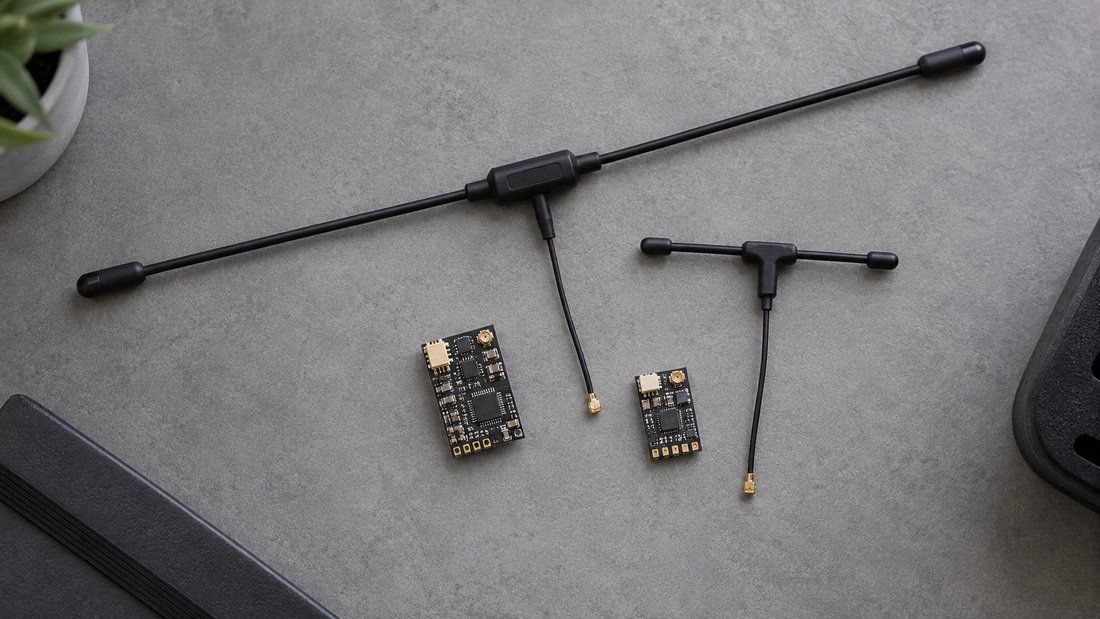
Buyer checklist: sourcing and supporting ELRS transmitter modules
Short answer: ask the questions whose answers you cannot verify yourself.
- Which firmware version and hardware target do the modules ship with?
- Can a whole order be supplied on one consistent version?
- What documentation or flashing instructions are included?
- Does the supplier provide recovery guidance if a flash fails?
- What is the returns or support process for a module that will not boot?
- Are matching receivers available so the fleet stays on one version?
- What antenna options are available for your band and venue?
- Are spare modules available so a failed update does not sideline an aircraft?
For anything commercial — price, lead time, minimum order, warranty, customisation — request the terms in writing rather than relying on a listing or a chat message.
FAQ
How do I update ELRS TX module firmware?
Enter the module’s update mode (Wi-Fi or wired, depending on hardware), connect it to a phone or computer, select the firmware version and the hardware target that matches your module in the ExpressLRS Configurator or web flasher, flash without interrupting power, then verify the version and rebind.
Can I update my transmitter but not my receivers?
You can, but the two sides must remain compatible. If a major version changes binding behaviour, updating only one side can cause binding failures. Check compatibility before updating any single part of a fleet.
What happens if I flash the wrong hardware target?
The module may stop working normally and require a recovery flash, often over USB, following the maker’s recovery procedure. Always confirm the exact target before flashing.
Is Wi-Fi or USB better for updating a club fleet?
Wi-Fi is faster to set up for one-off updates. USB or wired flashing tends to be more reliable for batches and is often needed for recovery. Standardise on one method so volunteers follow the same steps.
Do firmware updates improve range?
Not reliably. Range problems are usually caused by antenna choice, installation, interference or power settings. Update firmware for version compatibility and features, then investigate range separately.
How often should a club update firmware?
There is no universal schedule. Many clubs update deliberately — before a season, after testing, and never immediately before an event. The key is to test one pair first and to keep the fleet on compatible versions.
Where can I confirm which firmware my module needs?
Check the module maker’s own documentation for the target list and update method, and ask your supplier to confirm the shipped version and target for your specific order in writing.
Conclusion
Updating ELRS transmitter modules is a short procedure surrounded by a lot of detail that matters: the right hardware target, compatible major versions on both sides, a stable connection, and a bench test before any fleet-wide rollout. For clubs and programmes, the goal is not the newest firmware — it is a repeatable process that volunteers and students can follow safely.
Next step: if you are equipping or refreshing a team fleet, send us your requirements — module type, band, number of aircraft, and how you want firmware consistency handled — and Request a Team Kit Quote so we can confirm what is available and what needs to be verified for your order.